

Blog
Welcome


Recent posts
SEARCH RESULTS FOR: Photojunction Store

A few weeks ago we gave you a sneak peek at a major upgrade to our Client Galleries, designed to make it easier than ever for wedding and portrait photographers to sell print products to their clients. It' s based on what we've learned from the success of Print Shop, our other online sales platform. We're delighted to announce that it's now live, and accessible on all paid Workspace plans. Here we'll step you through the main features, but first, we're often asked — why do we offer two platforms? Because the customers are totally different, and so To View More >>
This entry was posted in Product Updates by Ian Baugh

Something changed for the better a few months ago, when we launched Print Shop, our platform for photographers and artists who are selling their work online as decor or works of art. Print Shop users have been very successful selling more expensive, more profitable, products — frames rather than loose prints, for example, larger frames rather than smaller ones. The work is beautiful, of course, and it is being sold as wall art, but we do think the Print Shop "store front" and product previews have helped with this success. That's why we're making the To View More >>
This entry was posted in Product Updates by Alexandria Baugh
We love what you're doing in Workspace (and we're watching closely!) You're showing us where to take the new platform, and inspiring us to make it as good as it possibly can be. Next time you log in to Queensberry Workspace you'll discover some major new features that we're sure you'll like - details below - plus we have a new Photojunction release to improve Workspace album proofing. A better experience, and a bargain too! Meantime… OUR HALF-PRICE DEAL ENDS MONDAY! If you like where we're going, our half price introductory special ends on 30 April, so you have just a day or two left to grab To View More >>
This entry was posted in by Admin

In our latest beta we've been doing all the normal things like fixing bugs and tweaking the Queensberry order process but you can read about that in our release notes - I'm excited and I want to jump to our headline! Imagine being able to present your album online and get your clients' feedback and approval from directly within Photojunction. Photojunction has teamed up with albumexposure, the contagiously easy online album proofing tool. We've integrated things so you can register with albumexposure directly in Photojunction and upload your design from PJ to your albumexposure account in just To View More >>
This entry was posted in by Admin
On occasion you may need to send us new or edited files for an order, and I posted the other day about how to do this in Workspace. Here's how to do the same in Photojunction. Start at the Photojunction Welcome screen. Select the Uploads tab. Select the original upload for this order, so it's highlighted. Click the "More" button and select "Upload additional images". Photojunction will open up a new window to drag and drop your files into. You will be asked to give a reason for your upload. This just helps us to understand why we are receiving new files, or what to do with them. Once you have To View More >>
This entry was posted in , by Admin
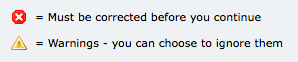
Ideally I like to see the Problem Reporter empty every time I finish a design, but it isn't always, and you're probably the same. By default, any errors you can't ignore are listed first in the Reporter - the ones with the little red and white "X" against them. We can't make your album until they're corrected, so PJ won't let you send your order until they are. The items with the little yellow warning triangle you can ignore if you like. They're sorted into spacing issues, then sizing issues, and lastly alignment issues. Obviously, you want to take care of your red issues first. Complete your album To View More >>
This entry was posted in by Admin
You created the perfect album. Except the size is wrong. Your clients have changed their mind. They still love the layout, but they want a different book. It isn't the ideal situation. It's actually why I prefer consulting the couple BEFORE laying out their book. Design for what they definitely want versus what you hope they will want. But alas, you're here. Stuck with the wrong size album. Thank goodness Photojunction auto-saves your albums as templates. You've just saved a ton of time! Just create a new album in the correct size (click the "+" button next to Products in the Event Window), add To View More >>
This entry was posted in by Admin

This post is now superseded by new functionality in Photojunction v1.22 and later). If you use Queensberry to design your albums we want to make the process as smooth as possible. Here’s how to go about it. (The PJ work sounds more complicated than it is, but we’re here to help if you need it. Follow the links for further information.) 1. Open up PJ Remix and click the Start New Project button. This fires up the Project Set-up Wizard for you to enter your Client and Event details and import the images. 2. Click Finish when you're done setting up the Project. Remix will import the images and To View More >>
This entry was posted in by Admin
Team PJ made some some pretty significant changes in the lead-up to the release of the latest final version, v1.31. Changes focused on simplifying and streamlining your workflow. Coinciding with that we asked them to create a new "service" – Design, Print and Assemble – to make the process of placing a design order and uploading all the files as simple as possible. ;) Really, it's very simple. Have a look at this video, and tell me if I'm wrong. Design service from Photojunction on Vimeo. As always, we'd love to hear what you think. Leave a comment and tell us... Cheers, Nigel PS Click here To View More >>
This entry was posted in by Admin
Why not design your albums in Photoshop or InDesign? A lot of people do, and they're great applications – we depend on them both ourselves. A few thoughts … Adobe don't think designing your albums in Photoshop is a good idea. That's not what it's for. Adobe's page layout software is InDesign. So how much does InDesign know about wedding and portrait photographers, their workflow, their albums and their suppliers? InDesign doesn't know what DPI your lab needs, or what file type, or what size the printed layouts should be, or about bleed and trim requirements, or what colour management processes To View More >>
This entry was posted in by Admin
Email: info@queensberry.com
Free Phone Numbers:
New Zealand: 0800 905 905
Australia: 1800 146 251
USA: +18668350851
UK: 0800 808 5271
Canada: +1 855 581 0370