

Blog
Welcome


Recent posts
We’re excited to release the biggest update yet to our online Album Designer, focused on the things that matter most when you’re designing: control, speed, and precision.
Here is a full list of what’s included in this release:
Simple to use, faster and more fluid
Our goal is to help you design beautiful albums easily, and you certainly can’t miss the improved performance! Even albums with many high-resolution images feel faster and more fluid:
* Faster rendering
* Fast movement between pages
* Smoother drag-and-drop function
* Reduced load times
* Improved responsiveness on larger spreads
* Better memory handling
Template design improvements
* Single sided templates can be dropped onto either side of the layout and are then resizable.
* We've improved aperture numbering on the page.
* If an image is favourited it will be used in larger apertures when a template is selected.
* The orientation of the file is honoured where possible.
Improvements to Auto Build Album
Auto Build works seamlessly with your chosen album order — using your specified number of pages and images — and automatically distributes your photos across the spreads.
It’s a powerful time-saving tool, whether you want the fastest way to generate complete layouts or simply a smart starting point for your design.
With Auto Build, you can:
* Choose how many images appear on the first and last pages (sides).
* Set the number of images per layout throughout the rest of the album.
* Define a time gap between photos — if the gap is exceeded, Auto Build will begin a new side.
* Decide how image overflow is handled: automatically adjust the number of layouts, round up (add more images per side), or round down (leave extras for manual placement).
* Select whether to use images directly from your photo library or generate layouts with blank apertures ready for you to drop images into.
* Choose between dropping 3×2 images onto the layout for custom design (preserving their original V or H orientation), or placing images automatically into pre-designed templates — bringing you much closer to a finished album.
Cut, Copy & Paste between spreads
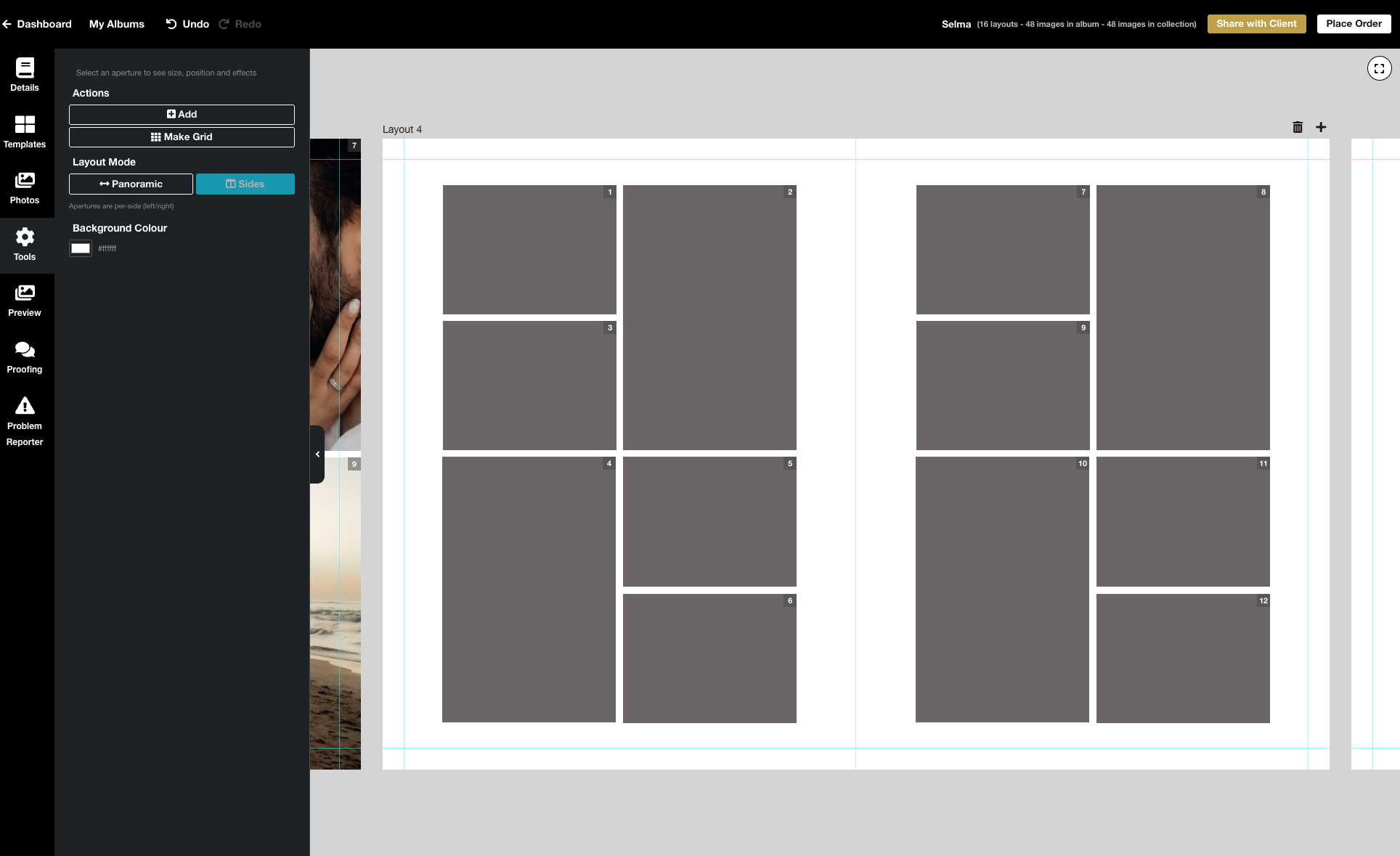
You can cut, copy and paste elements throughout your design. For example, once you've created a group you like, simply copy and paste it to the other side of a layout or to another layout entirely.
This makes it much easier to:
* Quickly move an image/group to a new layout
* Maintain consistency throughout an album by reusing design elements throughout your design without starting from scratch each time
Undo & Redo
This has been one of the most requested features and it’s finally here. You can now undo and redo actions within a layout (up to 20 steps per layout, per session). That means you can experiment more freely, test ideas, and easily step back if something isn’t working.
Open and Compare
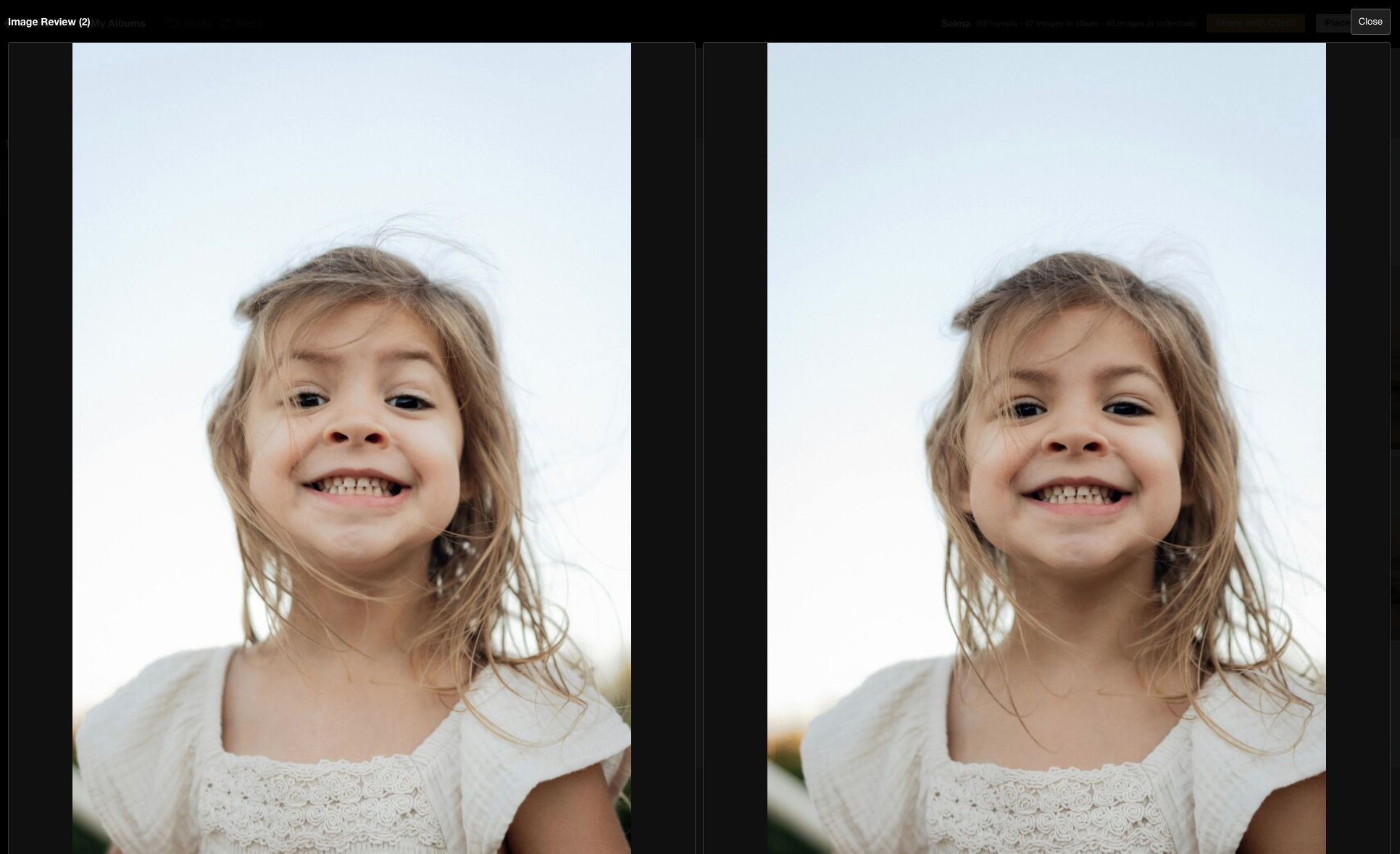
Compare images side by side to see which image you'd like to use in the album design. Simply click on the images in the photo panel, then click your space bar to open up the enlarged images side by side.
Live Cropping
Cropping is now fully interactive and in real time. You’ll see changes directly on the layout, as you make them, for immediate visual feedback. No more waiting for a crop to apply.
Advanced Alignment Tools
Clean, balanced spreads are now easier to achieve with a full set of alignment controls. No more manual nudging images into place, and less guess work.
* Align Left
* Align Centre (horizontally and vertically)
* Align Right
* Align Top
* Align Vertically
* Align Horizontally
* Align Bottom
Keyboard Shortcuts
Speed matters, especially when you’re working through multiple spreads. We’ve introduced essential keyboard shortcuts for a faster, more intuitive workflow:
* Undo (command + z)
* Copy (command + c)
* Paste (command + v)
* Cut (command + x)
* Centre on the layout or in the available background space (command + 5)
* Delete
* Arrow key nudging
* Shift + Arrow for larger movements
* Compare images (click on images in the photo panel and then click space bar to open the images side by side)
Add Grid
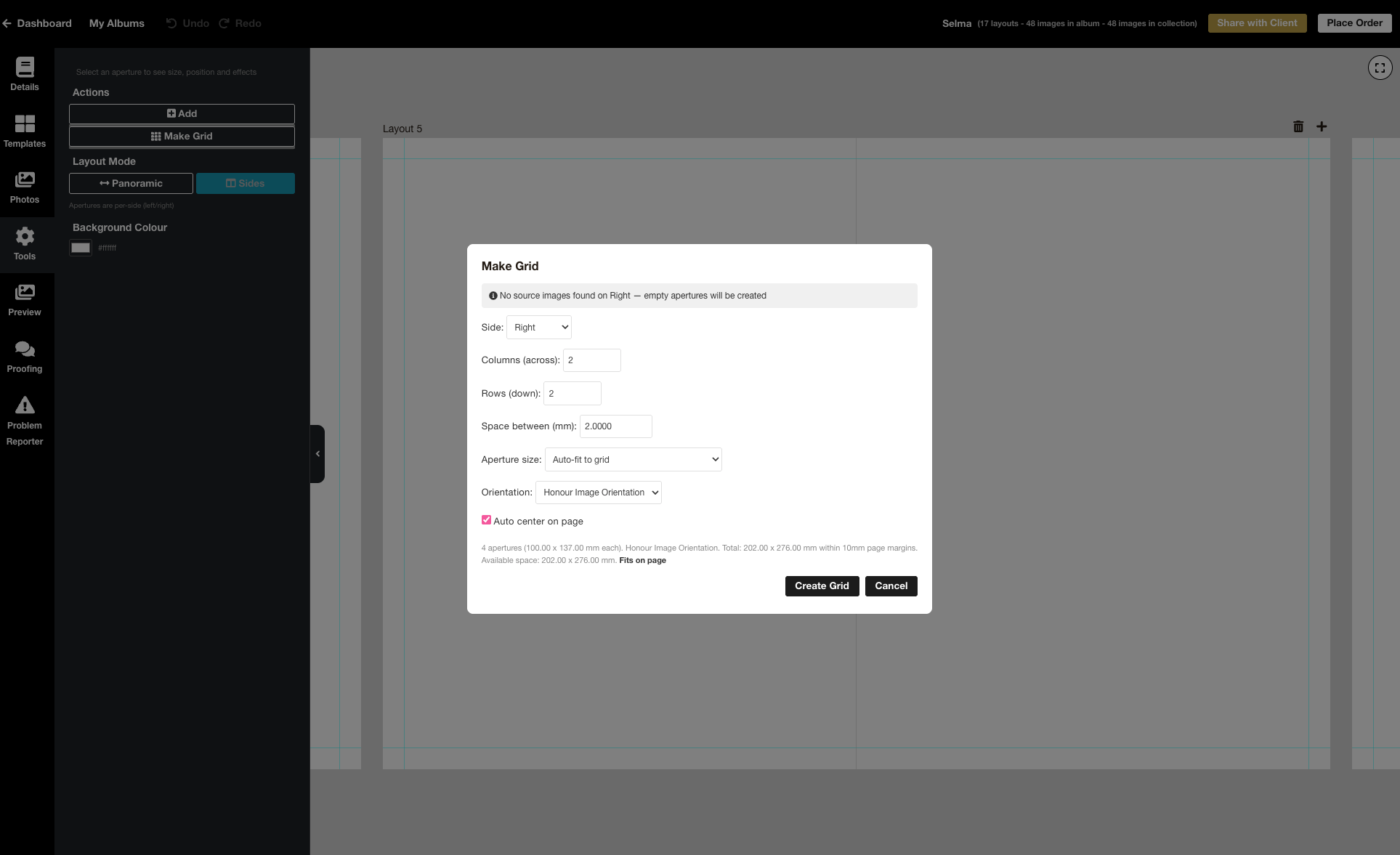
Think of the grid function as like building templates “on the fly“ — a handy shortcut when your existing template library doesn’t have what you need. Specify whether you want the grid to appear on the left or right side of the layout, or across the whole page opening in a panorama design. State how many images you want across the grid and how many down. It will populate the apertures with the photos if you already have them on the page, or otherwise add blanks.
Of course, as with templates you can always freely edit the size and orientation of the apertures in the grid.
Improvements to spacing guides and resizing
We’ve introduced significant enhancements to the spacing guides that appear while you design. When moving or resizing elements, guides now display automatically to help you achieve precise, professional layouts by showing:
* Equal spacing between objects
* Alignment with nearby elements
We’ve also refined how apertures and groups behave when resizing, giving you greater control and a smoother design experience:
* When resizing a group, image crops are maintained wherever possible.
* Resizing is now noticeably smoother and more responsive.
* Groups can be resized proportionally or adjusted independently in height and width.
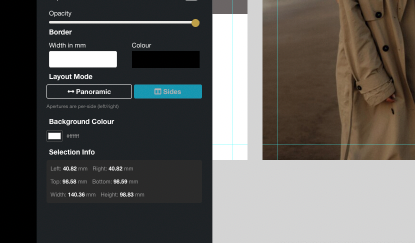
* Select a group of images to instantly view its overall dimensions and exact position on the page, making layout adjustments faster and more accurate.
Smart Background Colours
You can add different coloured backgrounds right in the Workspace Designer for Flushmount albums. Enter your custom hex code or use our helpful slider to select a colour. If the selected colour is out of gamut, Workspace will automatically notify you and adjust, as best it can, to within printable ranges.
“Under the hood” improvements
We’ve also built in a range of structural upgrades to stability and performance that will support future development and continued refinement.
Built for professional designers!
This release is based on your feedback and in collaboration with our in house-design team. It’s about reducing friction and giving you greater control. Our album designer is now more responsive, precise and powerful than ever, and we’ll continue to improve it from here.
Thanks for reading!
Stephen Baugh
P.s. This is a major update which we've done extensive testing for but the odd bug may show up. Please let us know by emailing info@queensberry.com. We'll fix it quickly!

Email: info@queensberry.com
Free Phone Numbers:
New Zealand: 0800 905 905
Australia: 1800 146 251
USA: +18668350851
UK: 0800 808 5271
Canada: +1 855 581 0370