This is the blog for professional photographers, and those who aspire to be. Our aim is to help professional photographers build long-term, sustainable careers.
Version 1.47, builds on changes introduced in v1.46. Our main focus was on Queensberry's new press books, including fixes to the new workflow, many of them "behind the scenes" from the user point of view. We know we have a way to go with this and the developers are continuing to work on cover design issues in particular. Having said that we've introduced three new features to speed up your album design. They're still a bit "v1.0", but we wrote them in consultation with Queensberry's design team, who live and die by productivity, and we wanted to get them to you early so you could take a look and tell us what you think. You've been able to auto-build an album from templates for a couple of years now, but the design team don't use the feature. Instead they wanted three things:
- a way for their clients to tell them which are the "hero shots".
- a way to automatically lay the images out on the pages in chronological order (if possible without ending up with unrelated images on the same page together).
- a way to auto-search for templates.
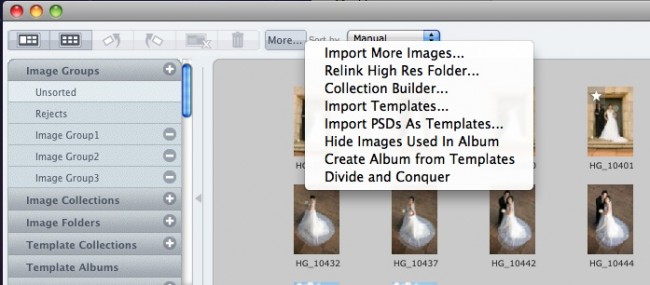
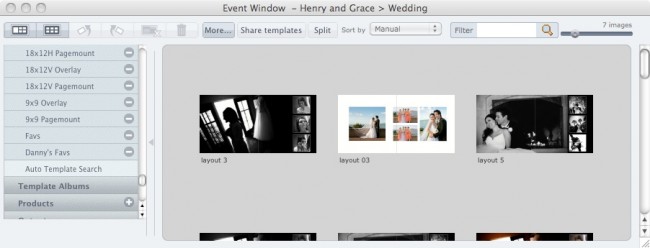
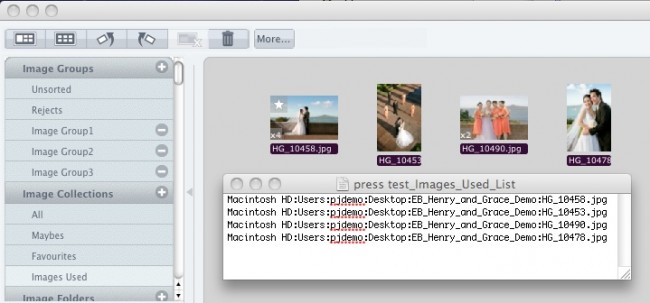
The first one was easy. If you right-click on an image, you can now give it a star to signify it's important. What about laying out the images on the pages? First you need to set up the album, including the number of layouts you want, and create a collection with the images to go in it. Then it's just a question of clicking the More button and selecting Divide and Conquer. The software will divide the images in the collection evenly and drop them on the number of layouts you've specified. The cool thing is that along the way you'll be asked to set a time interval to automatically divide the images into groups. When PJ finds a time gap bigger than what you specified it will automatically start a new layout, which generally means adding a couple of extra layouts to the number you've specified in setup. You can guarantee that you'll still want to shift images around a bit, so it's doubly cool that if you open the Preview tools panel you can drag an image directly from the active layout to another one. NB ALT-drag on Windows, OPT-drag on Mac. You're going to have to play with this to get the hang of it, but our designers reckon this saves them 20-40 minutes on every album they do. Now let's go for treble cool! Once you've got yourself a heap of templates (your own past work or collections you've bought from the PJ Store), how about being able to auto-search for the ones that match the number of images you've got on the layout? Well you can. "Auto Template Search" is the last item under Template Collections. Select it and, if you've got suitable templates, there they'll be. But there's an easier way: Right-Click on the layout (avoiding the images), select Auto Template Search and Photojunction will take you right there. It's early days for these new features, so let us know what you think. We're going to make them really great. Cheers, Ian PS And here's a bonus. To generate a list of images used in the album, including the path to them, go to the Album menu / Export / List of images used. If you just want to see them on screen go to Image Collections and click on Images Used. Both of these are shown in the screenshot below.


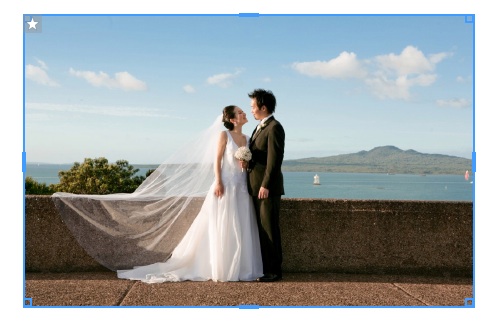 The first one was easy. If you right-click on an image, you can now give it a star to signify it's important. What about laying out the images on the pages? First you need to set up the album, including the number of layouts you want, and create a collection with the images to go in it.